Tracerate - A CLI tool for Network Diagnostics
1. What is Tracerate ?
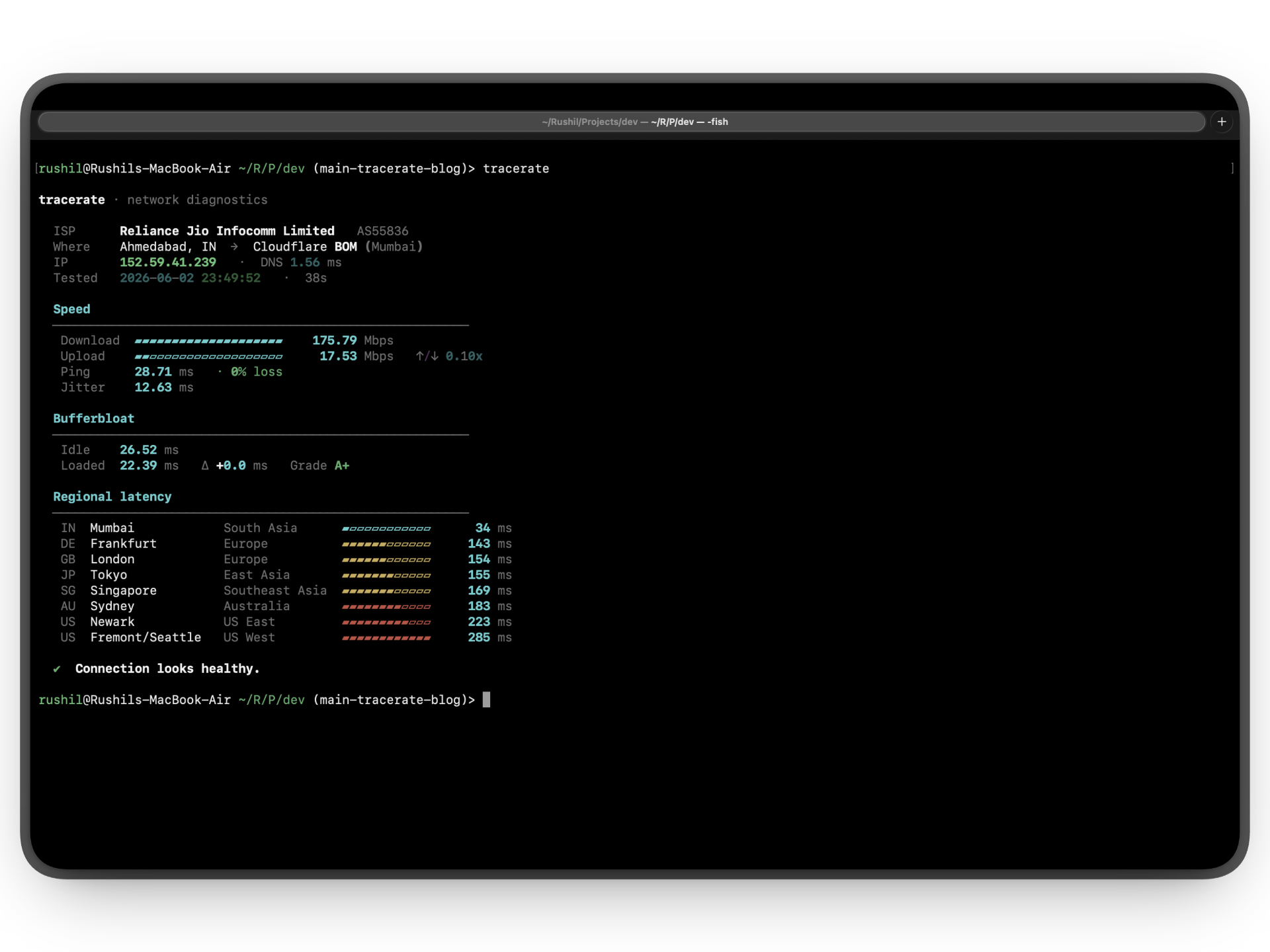
Tracerate is a CLI network diagnostic tool that checks download/upload speed, ping, jitter, bufferbloat, regional latency, and IP/DNS info, all in one shot. It's like a Swiss Army knife for network troubleshooting, giving you a comprehensive snapshot of your connection's health and performance right in your terminal.
2. Why I built tracerate ?
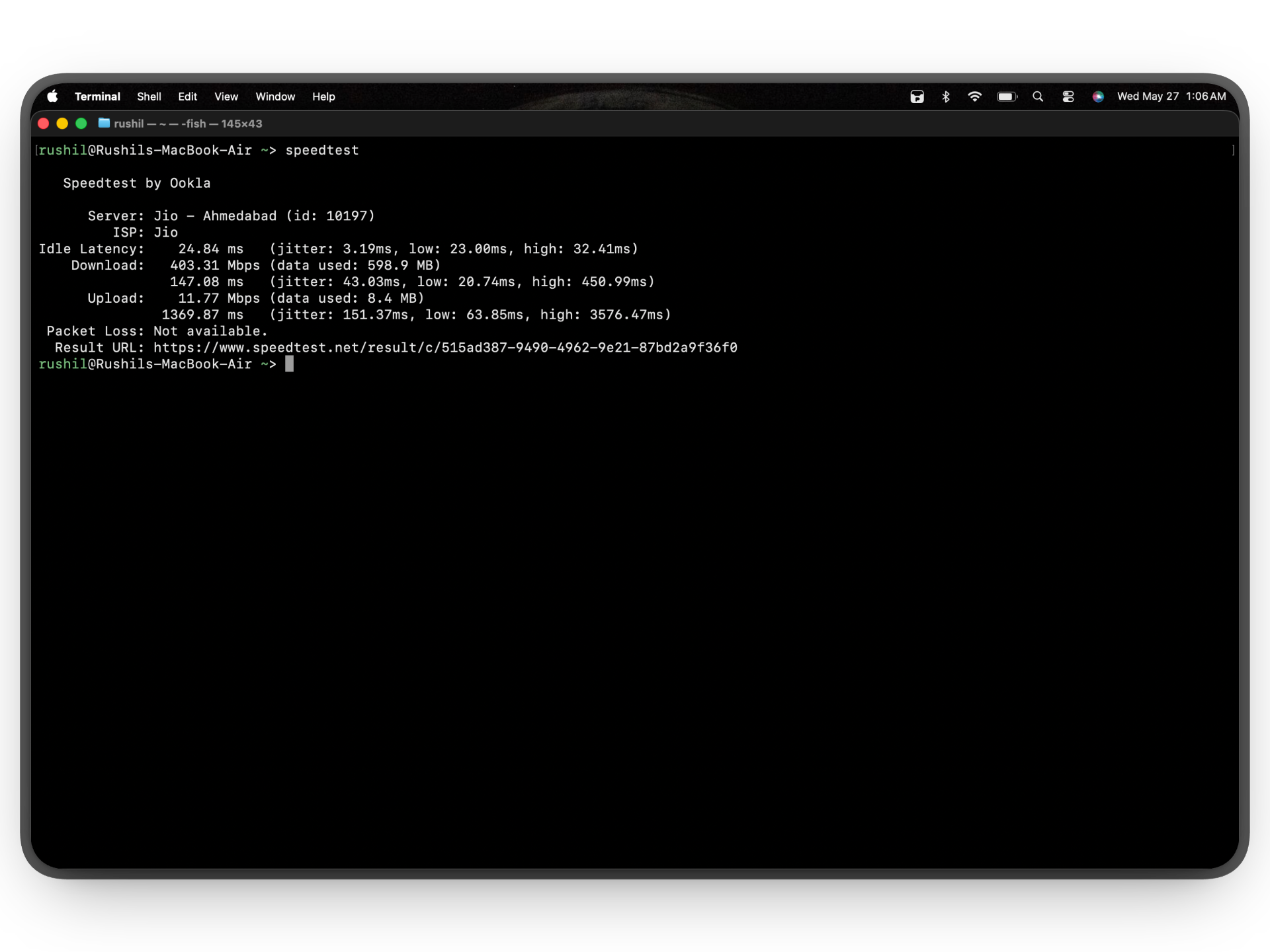
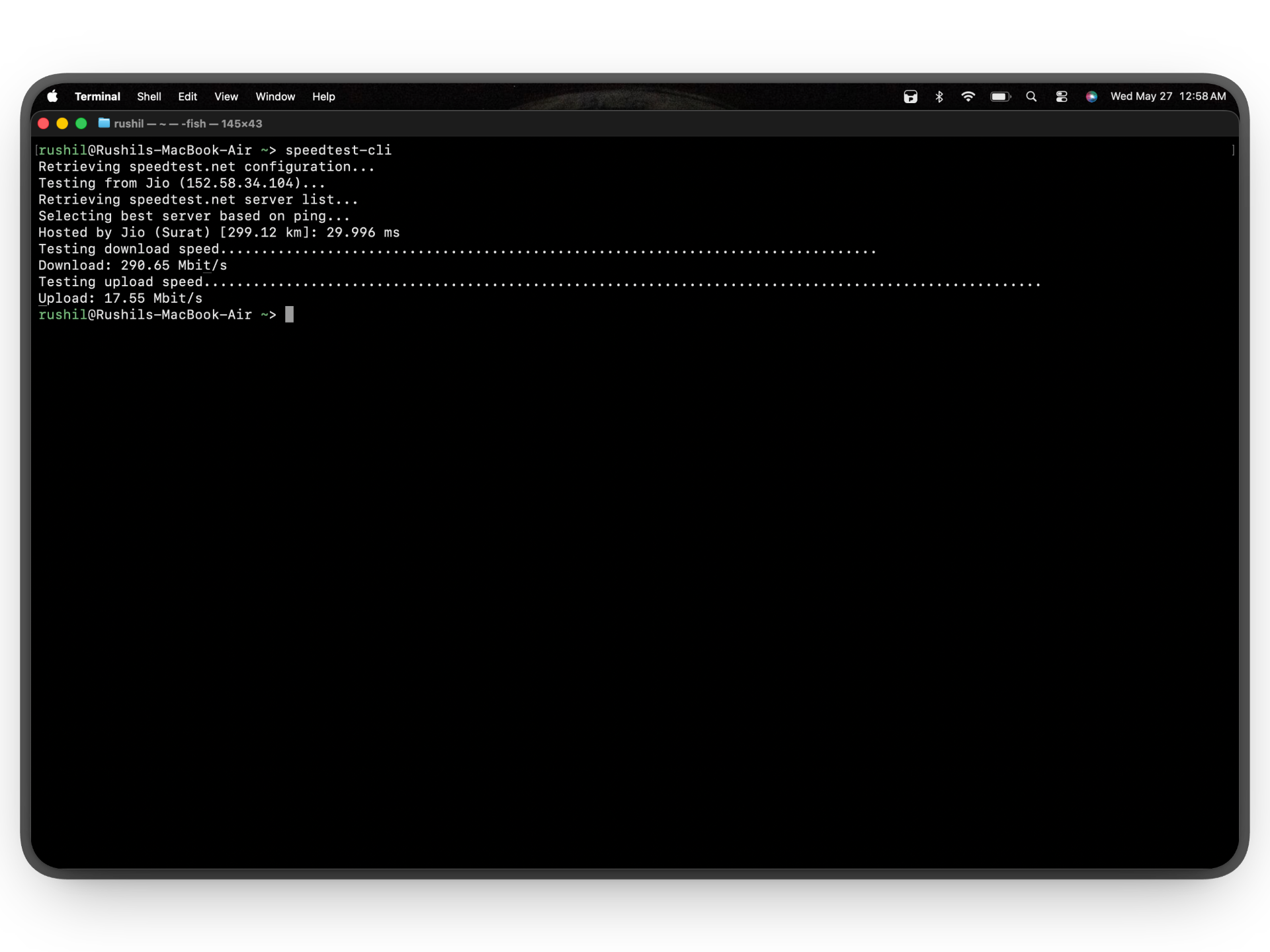
This is what I do when my network goes down in the middle of some work, the first instinct is to usually fire up my browser and open a new tab and search for "speed test" then I go through 1 or 2 sites (usually fast.com or Measurements lab), and all I got is plain download/upload speed, no other detail at all. So I thought instead of opening a browser and a new tab, why can't I just check in my terminal (as a developer I'm always in the terminal). So instead of jumping direct to create one, I checked for existing CLI tools. I found one by Ookla which is good, impressive but heavy weight, and then there's speedtest-cli by speedtest.net which is kind of archived I guess as that's what the repo says, and btw the output is so plain and again just download/upload speed not much information. So there comes my motivation to get my hands dirty & build a tool for it.
3. How I built it ?
Before jumping to HOW, a big question might have come to your mind, Why did I choose Python? (If you have seen the codebase) Well it's very simple, because I wanted to practice Python and improve my hands on it. In this AI world no one writes code by bare hand now and I kind of lost my grip in python, actually never had one because I mostly work with JavaScript at work, and also in my personal projects there is less to none Python. So I wanted to indulge more in Python and get my hands on with it.
Also, almost everything the tool does is waiting on the network, so the usual concurrency complaints don't really apply. The ecosystem for this kind of CLI work is mature, everything I needed already existed, and I could focus on the actual measurement logic instead of plumbing. so I decided to go with Python ;)
Now to make a CLI tool with this requirement you need to know the DNS, the IP related information, and then need to actually play with some bytes on network. So let's go top to bottom in the order things run.
IP & ISP Detection
The first thing tracerate does is figure out where you are on the internet. It hits ipinfo.io for your IP, city, country, and org field (something like AS13335 Cloudflare, Inc.). That gets split on the first space to pull out the ASN and ISP name cleanly.
But ipinfo doesn't tell you which Cloudflare edge you actually hit. So in parallel it also calls Cloudflare's meta endpoint, which Cloudflare itself uses on their speed test page. That one returns the colocation (the IATA code of the PoP, like AMD for Ahmedabad, or BOM for Mumbai) and the city it sits in. Both calls are fired off together with a ThreadPoolExecutor, so the lookup doesn't take any longer than the slower of the two. End result is one line in the output that says something like "you're on Jio, hitting Cloudflare BOM". That little detail is worth knowing when you're trying to figure out if your ISP is routing you efficiently or sending you halfway across the world to get to Cloudflare.
DNS Timing
DNS is kept deliberately simple. socket.getaddrinfo() wrapped in perf_counter(), rounded to 2 decimals. That's it. I considered doing a proper UDP query to 1.1.1.1 or 8.8.8.8 for a more accurate measurement, but getaddrinfo is what your apps actually call when they resolve a hostname. The number you see is the number that affects you. Felt right to not over-engineer it.
Ping, Packet Loss & Jitter
Ping is TCP based, not ICMP. Reason being ICMP needs raw sockets which means root on macOS/Linux, and I didn't want users running my tool with sudo. So instead tracerate opens a TCP socket to speed.cloudflare.com:443, times how long the connect() takes, closes it, and repeats 5 times. From those 5 samples:
- average latency = mean of successful samples
- packet loss = how many of the 5 attempts timed out, as a percentage
- jitter = max sample - min sample
It's not exactly the same thing as ICMP ping, you're measuring the full TCP handshake, but it's close enough and it works for everyone without privileges.
Download speed
This is the part I went back and rewrote a couple of times. The naive version was to open one HTTP stream, count bytes, divide by time. But TCP has slow start, so the first second or two is always slow and your "average" comes out lower than your actual link speed. Also a single stream often can't saturate a fast link because of TCP window limits.
So the real version does two things:
- Parallel streams. Default 6 threads, each hitting
speed.cloudflare.com/__down?bytes. Each thread maintains its own counter (no lock needed, one writer per index) and just keeps reading 1MB chunks until it's told to stop. - Warmup window. First 1.5 seconds of bytes are thrown away. After that it resets all counters, marks the start time, and then only the next 15 seconds (or 10 in
--quick) count toward the result. So slow start is invisible in the number.
A threading.Event is the stop signal. When time's up it sets the event, the workers see it on their next chunk and return. Speed is (bytes * 8) / elapsed / 1_000_000 to get Mbps. Progress bar is driven by polling sum(counters) every 100ms.
Upload speed
Upload is similar idea but the implementation is different because POST bodies aren't streams in the same easy way. It generates a 1MB chunk of os.urandom (random because some networks compress repetitive data and that would inflate the number), repeats it to fill up to per_stream bytes, and then 4 threads each POST that payload to speed.cloudflare.com/__up.
Each thread feeds the body through a generator that yields 64KB at a time and bumps a per-thread counter, so a monitor thread can read sum(sent_counters) and update the progress bar without touching shared state. There's a 25MB cap on total payload so the test doesn't go forever on slow uplinks. When all the POSTs return, total_bytes / elapsed = Mbps. Failed uploads simply aren't counted in the total.
Bufferbloat
This one was the most fun to write because it's a measurement that nobody else's CLI bothers with.
The idea was a healthy connection has roughly the same ping whether the link is idle or full. A bad one (cheap router with no fair queueing) will queue up packets when the pipe is full and your ping shoots from 20ms to 400ms. That spike is bufferbloat.
So:
- Take 8 idle ping samples to Cloudflare in parallel. Take the min as the idle baseline (we want the floor, not the average, because the floor is what's physically possible).
- Start a background thread that streams a 200MB download and just throws the bytes away. This saturates the download link.
- Wait 200ms for the link to fill up, then sample ping every 200ms for 5 seconds.
- Take the min of those loaded samples too. Subtract idle from loaded, that's your delta.
Grades:
< 5ms     → A+
< 30ms    → A
< 60ms    → B
< 200ms   → C
< 400ms   → D
otherwise → F
Most home connections are a B or C. Anything above that and your router really is the problem.
Regional Latency
This one is just to give you a feel of where you actually are on the global internet, not just where your ISP says you are. It picks 8 Linode speedtest endpoints, located in Mumbai, Singapore, Tokyo, London, Frankfurt, Newark, Fremont, Sydney, etc., because Linode runs them in fixed locations and they don't rate-limit TCP connects. For each one is TCP pinged (3 attempts, take the min, 2 second timeout) and run all 8 in parallel. The whole thing finishes in roughly the time of the slowest ping, around 2-3 seconds. Output is sorted by latency, with a colored bar so you can see at a glance which region you're closest to. If a region times out, it shows as "timeout" instead of 0 ms, which would have been misleading.
Output & UX (Console Print)
This is where rich carries the project. There are options like plain print with ANSI codes, colorama, blessings, but rich does live progress bars, spinners, colored text, and lets you drop little markup tags inline like [bold cyan]Speed[/bold cyan]. It's way nicer than building escape sequences by hand.
A few things rich does for the output:
- Progress bars during download/upload that update in place with current Mbps and elapsed seconds.
- Status spinners while doing IP lookup and bufferbloat probing, so the terminal isn't sitting silent.
- Custom bars drawn with
▰▱characters, scaled to the max value in the current section (so download and upload share a scale, regions share their own). - Color coded grades and verdicts DNS over 150ms goes red, bufferbloat F goes red, healthy connection gets a green checkmark, etc.
There's also a small rule-based analyze function in verdict.py that looks at all the numbers together and produces one human sentence at the bottom. Like "Packet loss detected, connection is unstable" or "Low bandwidth, ISP speed is the bottleneck" or just "Connection looks healthy". It's nothing fancy, just a stack of ifs, but it saves you from having to interpret 8 numbers yourself when you're already annoyed because your network is misbehaving.
Commands
Typer is the reason the help text just works. You write your function with type-annotated arguments and typer.Option defaults, and you get a --help page for free. The flags exposed are:
tracerate                 → full test, runs everything
tracerate --quick         → 10 second download, skips upload, bufferbloat and regions, takes maybe 15 seconds total
tracerate --duration 30   → custom download window in seconds
tracerate --streams 8     → more parallel streams if you have a really fast link
tracerate --output json   → machine readable output for piping into other tools
4. What's Next
A few first things is test. The core logic is solid but there's no test coverage yet, and that's the thing I'd be embarrassed about if someone sent a PR.
If you have ideas, the repo is at github.com/rushil-b-patel/tracerate.
PRs welcome, opinions even more so.